
- Prerequisites
- Firewall and Network Requirements
- Microsoft Edge Download Block
- SQL Server Authentication Setup for IT Administrators
- Antivirus and Endpoint Security Exclusions
- SQL Server Tools
- Install or Upgrade SQL Server Express
- Install or Upgrade SQL Server Management Studio
- Database Connection Setup
- Database Creation
- Database Restore
- Transfer Settings from Database
- Connecting a Second Computer
- A Tour of the Main Window
- The Menus
- The Button Row
- The Main Data Grid
- The Summary Section
- Banners and Badges
- The Options Window
- Store Configuration
- Miscellaneous
- Export Options
- Vendor Settings
- POS / Connections Tabs
- Background Service
- AI Assistant (Experimental)
- How POS Import Works
- Supported Point-of-Sale Systems
- Data Import Workflows
- RockSolid POS Import
- Epicor Eagle FTP Import
- Epicor MySQL Compass Import
- Transact POS Import
- Paladin POS Import
- Falcon POS Import
- Spruce POS Import
- Bistrack POS Import
- RockSolid Max POS Import
- ECS POS Import
- Prosperity POS Import
- Catalyst POS Import
- Westlake POS Import
- MI9 POS Import
- AS/400 POS Import
- CounterWorks POS Import
- Dimension POS Import
- PacSoft POS Import
- ProStix POS Import
- Sympac POS Import
- Propello POS Import
- EagleVision POS Import
- MySQL/Compass Connection Configuration
- ECI VPN Requirement (Spruce, RockSolid MAX)
- Propello POS Integration Guide
- Troubleshooting: Epicor Import Brought In 0 SKUs
- PACE POS Import
- Advantage POS Import
- General Store POS Import
- J-3 POS Import
- KeyStroke POS Import
- AutBusSystem POS Import
- Tomax POS Import
- Enterprise POS Import
- Computakey POS Import
- Redisell POS Import
- DART POS Import
- MIB POS Import
- Substruct POS Import
- DMAS POS Import
- RODS POS Import
- Procom POS Import
- Agility POS Import
- Acumen POS Import
- Cruise POS Import
- LSandE POS Import
- Retalix POS Import
- DIBCorp POS Import
- GMROI POS Import
- ECi Advantage POS Import
- Sunray POS Import
- ActivantAutomotive POS Import
- IBS POS Import
- Versys POS Import
- RMS POS Import
- TAMS POS Import
- Integrasoft POS Import
- Dynamic POS Import
- Microsoft ARS POS Import
- CDS POS Import
- Spartan POS Import
- Nitterhouse POS Import
- Jeds POS Import
- Theisens POS Import
- Emery Jensen POS Import
- SMS Pro POS Import
- Burdens POS Import
- Intact POS Import
- Bloom Retail POS Import
- NCR Counterpoint POS Import
- Horizon POS Import
- Cloud Vendor Data Sync
- Data Aging and Freshness Warnings
- Resetting Vendor and POS Data
- Rebuild Data and Rebuild Selection Lists
- Troubleshooting Vendor Sync
- Understanding the Strategy Hierarchy
- Pricing Strategies
- Creating a Strategy Step
- Updating and Deleting Steps
- Reviewing a Strategy and Running It
- Shared (Premade) Strategies
- SKU-Level Exceptions
- Manage Custom Groups
- Strategy Execution Cloud Tracking
- Ace Hardware MAP & IMAP Pricing
- Ace Critical Retail Pricing
- True Value Price Levels
- True Value Store Assessment
- Importing from Excel
- Cost Break Analysis
- Cost Break Strategies
- Min/Max Strategies
- Strategy Backup & Restore
- Add Items from Catalog
- Store Grouping
On This Page
Bistrack POS Import
What is this?
Bistrack is the most feature-rich POS import in Margin Master, supporting several import variants to accommodate different store configurations. It can import from export files or connect directly to a live Bistrack SQL Server database.
Walk through it in the app: guide 4006 — Importing your BisTrack data. Margin Master can walk you through these steps live: turn on Training / Guide Mode from the Help menu, then type 4006 into the Lessons & Guides box — or ask Margin Master support to run it with you.
Margin Master reads the standard export your Bistrack system produces and recognizes its layout automatically; support confirms the layout with you at setup.
DirectConnect
Instead of importing a file, DirectConnect reads your live Bistrack SQL Server database directly:
- Reads your items, stock and supplier costs from Bistrack
- Only includes items your Bistrack administrator has flagged for export to Margin Master
How Import Works
File-Based Import
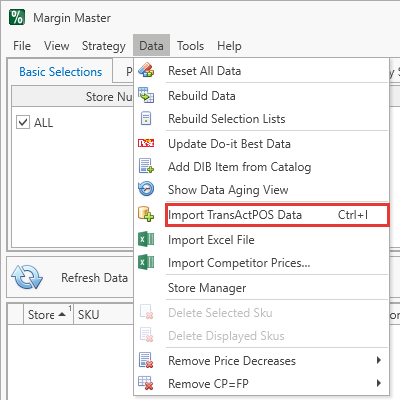
Export your data from Bistrack as a .txt or .csv file and place it in your Import Path (Tools > Options > Miscellaneous), or in the yard's folder under your Network Import Root if you have one. Choose Data > Import Bistrack Data (Ctrl+I), tick the files to import and click Import.
Margin Master reads every export in one pass and then builds each yard's tables, so the progress bar covers the full import rather than restarting at 0% per file.
DirectConnect Import
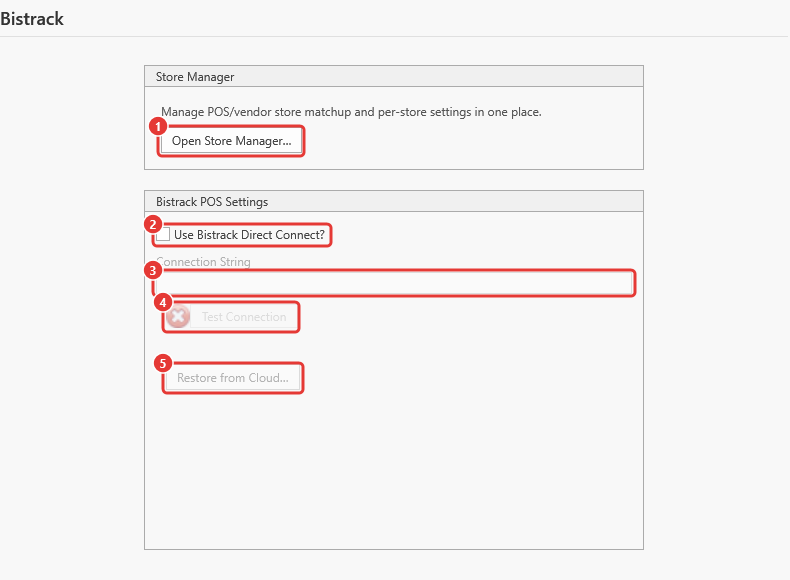
- Open Store Manager... - POS/vendor store matchup.
- Use Bistrack Direct Connect? - switch from file import to the live database.
- Connection String for the Bistrack SQL Server.
- Test Connection.
- Restore from Cloud...
With DirectConnect switched on, Margin Master connects to your Bistrack SQL Server using the connection string configured in Options, reads the items flagged for export, and loads the results into its database.
Pricing a Purchase Order
You can price just the items on one open purchase order. Export the PO from Bistrack in the same
layout as your normal catalog export and name the file PO followed by the purchase order number -
for example PO1015900.csv.
Put the file wherever your other Bistrack exports go: your Import Path (Tools > Options > Miscellaneous), a yard folder under your Network Import Root, or a sub-folder of the Import Path. Purchase order files are the one exception to the current-folder-only rule - Margin Master looks in sub-folders for them.
Then choose Data > Import Bistrack Data (Ctrl+I) as usual. Margin Master reports what it did with each PO.
Purchase order files are never listed in the Import Bistrack Data window - that list is for yard exports only. If there are no new yard files but a purchase order is waiting, the window tells you which orders it found, which yard each belongs to, and whether that yard is ready. A ready order is applied when you close the window.
What happens to a purchase order file:
| The purchase order number | comes from the file name - PO1015900.csv becomes 1015900 |
| The yard | comes from the file's own Store column, not the folder it sits in. The export must include that column |
| The tag | every item on the PO is tagged {yard}-{PO number} - for example 23-1015900 - in the PO Number field |
| New items | items on the PO that are not in the yard yet are looked up in the Do it Best catalog and added so you can price them. Items the catalog does not have are reported and skipped |
| The catalog | is never rebuilt from a purchase order. A PO lists only part of a yard, so it only ever adds and tags - it cannot replace the yard's items |
To price the order, pick its number from the PO Number selection box, then price and export as you normally would.
The PO Number tag clears itself. Once Bistrack exports one of those items in a normal catalog export, the item comes back untagged. Price a purchase order before the yard's next export, or re-apply the PO file.
The purchase order file is not renamed
.BAKafter it is used, so it is re-applied on every import while the order is open. Delete it once the order is closed - at the next import the order's number disappears from the PO Number list, and the import message tells you how many closed orders were removed.
Re-exporting an open purchase order under the same file name replaces the earlier copy, so an order that grew after it was first exported is re-read on the next import.
Pricing a New Product Spreadsheet
Data > Import New Product Spreadsheets adds the SKUs listed in a yard's new-product
spreadsheet (.xlsx files in the NewProductImport folder under your Margin Master folder, each
with a Yard #) from the Do it Best catalog, and tags every SKU on the sheet with
{yard}-{spreadsheet name} - for example 21-NewItems for NewItems.xlsx imported for yard 21 -
in the Import File field.
To price the sheet, pick its name from the Import File selection box, then price and export as you normally would. The results window names the label to pick.
| The label | {yard}-{spreadsheet name}, shown in the Import File selection box |
| Items already in the yard | are tagged too, so the whole sheet can be selected as one unit |
| Items not in the Do it Best catalog | are listed as Not Found in the results window and the log |
| Large sheets | a sheet of 15,000 SKUs imports in minutes; use the filter row in the results window to find the Not Found rows |
The Import File tag lasts until the yard exports the item in a normal catalog export. Items the import added (not yet in the yard's export) keep their tag through Rebuild Data; items the yard already had are tagged until its next export.
A purchase order for a yard with no data in Margin Master cannot be tagged - there are no items to tag. If that yard was imported before, its last export is waiting as a backup: under Files to show choose Backup Files, tick the yard's most recent file and click Restore, then tick it and click Import. The purchase order is applied straight after that yard imports.
Troubleshooting
| Symptom | Likely cause | What to do |
|---|---|---|
| No Files Found when you choose Get POS Data | The export is not in the Import Path (Tools > Options > Miscellaneous), or its name does not match the file name Margin Master support confirmed with you | Check the path and the file name; Margin Master reads only the current folder, not sub-folders (purchase order files are the exception - see above) |
| No New Files to Import, but a purchase order file is in the folder | Purchase orders are not listed in the import window - only yard exports are | Close the window; the purchase order is applied then. The Purchase Orders message says what happened |
| A purchase order is not tagged, and the message says the yard has no data | That yard has no items in Margin Master | Restore the yard's most recent file from Backup Files and import it (see above), or import a fresh export of that yard |
| A purchase order says its yard is unknown | The export is missing the Store column, so Margin Master cannot tell which yard the order belongs to | Re-export the PO including the Store column |
| A PO Number you priced has disappeared | The yard was exported again, and the tag cleared as designed - or the PO file was deleted, which closes the order | Re-apply the PO file, or price the order before the yard's next export |
| A closed PO Number is still listed | Its PO*.csv is still in the Import Path or a yard folder on the share |
Delete the file; the number is removed at the next import |
| Stores you did not import are listed after an import | Normal when you import one yard at a time - their data is left untouched | Nothing. To remove a yard permanently use Store Manager |
| The same file is imported again and again | The previous import's file was not renamed | After a successful import the file is renamed to NAME[ext].BAK; a file that keeps its name did not import - read the error dialog |
| 0 records or far fewer than expected | The export covers the wrong store, or the store is not matched in the Store Manager | Open Store Manager and check the store's row; re-export from the point of sale |
| Columns land in the wrong fields | The export layout changed | Contact Margin Master support with the file |
| Import finishes but the grid does not change | The rebuild was postponed (the Click to update data badge is showing) | Click the badge, or Data > Rebuild Data |
Every import failure shows one error dialog; the log under File > Utilities > Show Log Files has the detail to send to support.
Tips
If you are unsure which Bistrack export to use, start with the standard export. Your Bistrack administrator can confirm which export format your system produces, and Margin Master recognizes the layout automatically.
For DirectConnect, make sure the items you want to analyze in Margin Master are flagged for export in Bistrack. Items without the flag are skipped. Margin Master support can tell your Bistrack administrator exactly which flag to set.
If your export does not include location, vendor, or competitor data, that is fine - Margin Master has a reduced layout for it. Support confirms which one you are using at setup.
Configure Bistrack settings in Options > Bistrack tab, including the connection string for DirectConnect mode.
Common Questions
Q: Which Bistrack export should I use? A: Your store's Bistrack export format determines the layout, and Margin Master recognizes it automatically. Your Bistrack administrator or Margin Master support can help identify the correct export.
Q: What is DirectConnect and when should I use it? A: DirectConnect queries your Bistrack SQL Server in real time instead of importing a file. Use it if you want the most current data without manually exporting files. It requires network access to your Bistrack database and Use Bistrack Direct Connect? switched on in Options.
Q: My DirectConnect import is very slow. Is that normal? A: DirectConnect does its work on your Bistrack server, which can take longer for large catalogs. Loading the results into Margin Master is fast, but the first part depends on your Bistrack database size and server performance.