
- Prerequisites
- Firewall and Network Requirements
- Microsoft Edge Download Block
- SQL Server Authentication Setup for IT Administrators
- Antivirus and Endpoint Security Exclusions
- SQL Server Tools
- Install or Upgrade SQL Server Express
- Install or Upgrade SQL Server Management Studio
- Database Connection Setup
- Database Creation
- Database Restore
- Transfer Settings from Database
- Connecting a Second Computer
- A Tour of the Main Window
- The Menus
- The Button Row
- The Main Data Grid
- The Summary Section
- Banners and Badges
- The Options Window
- Store Configuration
- Miscellaneous
- Export Options
- Vendor Settings
- POS / Connections Tabs
- Background Service
- AI Assistant (Experimental)
- How POS Import Works
- Supported Point-of-Sale Systems
- Data Import Workflows
- RockSolid POS Import
- Epicor Eagle FTP Import
- Epicor MySQL Compass Import
- Transact POS Import
- Paladin POS Import
- Falcon POS Import
- Spruce POS Import
- Bistrack POS Import
- RockSolid Max POS Import
- ECS POS Import
- Prosperity POS Import
- Catalyst POS Import
- Westlake POS Import
- MI9 POS Import
- AS/400 POS Import
- CounterWorks POS Import
- Dimension POS Import
- PacSoft POS Import
- ProStix POS Import
- Sympac POS Import
- Propello POS Import
- EagleVision POS Import
- MySQL/Compass Connection Configuration
- ECI VPN Requirement (Spruce, RockSolid MAX)
- Propello POS Integration Guide
- Troubleshooting: Epicor Import Brought In 0 SKUs
- PACE POS Import
- Advantage POS Import
- General Store POS Import
- J-3 POS Import
- KeyStroke POS Import
- AutBusSystem POS Import
- Tomax POS Import
- Enterprise POS Import
- Computakey POS Import
- Redisell POS Import
- DART POS Import
- MIB POS Import
- Substruct POS Import
- DMAS POS Import
- RODS POS Import
- Procom POS Import
- Agility POS Import
- Acumen POS Import
- Cruise POS Import
- LSandE POS Import
- Retalix POS Import
- DIBCorp POS Import
- GMROI POS Import
- ECi Advantage POS Import
- Sunray POS Import
- ActivantAutomotive POS Import
- IBS POS Import
- Versys POS Import
- RMS POS Import
- TAMS POS Import
- Integrasoft POS Import
- Dynamic POS Import
- Microsoft ARS POS Import
- CDS POS Import
- Spartan POS Import
- Nitterhouse POS Import
- Jeds POS Import
- Theisens POS Import
- Emery Jensen POS Import
- SMS Pro POS Import
- Burdens POS Import
- Intact POS Import
- Bloom Retail POS Import
- NCR Counterpoint POS Import
- Horizon POS Import
- Cloud Vendor Data Sync
- Data Aging and Freshness Warnings
- Resetting Vendor and POS Data
- Rebuild Data and Rebuild Selection Lists
- Troubleshooting Vendor Sync
- Understanding the Strategy Hierarchy
- Pricing Strategies
- Creating a Strategy Step
- Updating and Deleting Steps
- Reviewing a Strategy and Running It
- Shared (Premade) Strategies
- SKU-Level Exceptions
- Manage Custom Groups
- Strategy Execution Cloud Tracking
- Ace Hardware MAP & IMAP Pricing
- Ace Critical Retail Pricing
- True Value Price Levels
- True Value Store Assessment
- Importing from Excel
- Cost Break Analysis
- Cost Break Strategies
- Min/Max Strategies
- Strategy Backup & Restore
- Add Items from Catalog
- Store Grouping
On This Page
CounterWorks POS Import
What is this?
CounterWorks is a point-of-sale system for hardware and building supply retailers. Margin Master imports CounterWorks exports to build pricing analysis tables. CounterWorks is unique in that it provides monthly margin percentages instead of standard unit sales history.
Margin Master reads the standard export your CounterWorks system produces; support confirms the layout with you at setup.
How Import Works
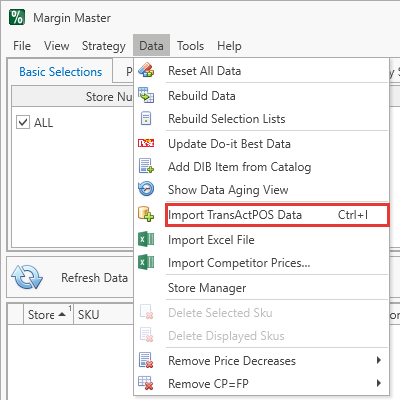
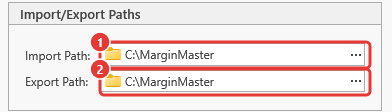
The export file is read from the Import Path set under Tools > Options > Miscellaneous:
- Export your data from CounterWorks as a
.csvfile. - Place the file in the configured import folder.
- Margin Master reads the file, validates the fields, and loads the data into its database.
- Margin Master joins the store data with vendor catalog data to build your main pricing analysis table.
Troubleshooting
| Symptom | Likely cause | What to do |
|---|---|---|
| No Files Found when you choose Get POS Data | The export is not in the Import Path (Tools > Options > Miscellaneous), or its name does not match the file name Margin Master support confirmed with you | Check the path and the file name; Margin Master reads only the current folder, not sub-folders |
| The same file is imported again and again | The previous import's file was not renamed | After a successful import the file is renamed to NAME[ext].BAK; a file that keeps its name did not import - read the error dialog |
| 0 records or far fewer than expected | The export covers the wrong store, or the store is not matched in the Store Manager | Open Store Manager and check the store's row; re-export from the point of sale |
| Columns land in the wrong fields | The export layout changed | Contact Margin Master support with the file |
| Import finishes but the grid does not change | The rebuild was postponed (the Click to update data badge is showing) | Click the badge, or Data > Rebuild Data |
Every import failure shows one error dialog; the log under File > Utilities > Show Log Files has the detail to send to support.
Tips
- Margin, not sales units: Unlike most POS systems, which export unit sales counts for history, CounterWorks exports monthly margin percentages. Those percentages are what you see in Margin Master's twelve monthly history columns.
- Line code and subline: CounterWorks' line code is what you see as the Department in Margin Master, and its subline as the Class.
- Two order multiples: CounterWorks exports both a SKU-level order multiple (how the product is packaged) and a standard order quantity multiple; Margin Master keeps them separate.
Common Questions
Q: Why does my history data look different from other POS systems? A: CounterWorks exports margin percentages rather than unit sales counts. The values in your History columns represent monthly margin percentages, not the number of items sold.
Q: What is the difference between the two order multiples? A: The SKU-level order multiple is how the product is packaged; the order quantity multiple is the standard multiple used for reordering. Both come straight from your CounterWorks export.