
- Prerequisites
- Firewall and Network Requirements
- Microsoft Edge Download Block
- SQL Server Authentication Setup for IT Administrators
- Antivirus and Endpoint Security Exclusions
- SQL Server Tools
- Install or Upgrade SQL Server Express
- Install or Upgrade SQL Server Management Studio
- Database Connection Setup
- Database Creation
- Database Restore
- Transfer Settings from Database
- Connecting a Second Computer
- A Tour of the Main Window
- The Menus
- The Button Row
- The Main Data Grid
- The Summary Section
- Banners and Badges
- The Options Window
- Store Configuration
- Miscellaneous
- Export Options
- Vendor Settings
- POS / Connections Tabs
- Background Service
- AI Assistant (Experimental)
- How POS Import Works
- Supported Point-of-Sale Systems
- Data Import Workflows
- RockSolid POS Import
- Epicor Eagle FTP Import
- Epicor MySQL Compass Import
- Transact POS Import
- Paladin POS Import
- Falcon POS Import
- Spruce POS Import
- Bistrack POS Import
- RockSolid Max POS Import
- ECS POS Import
- Prosperity POS Import
- Catalyst POS Import
- Westlake POS Import
- MI9 POS Import
- AS/400 POS Import
- CounterWorks POS Import
- Dimension POS Import
- PacSoft POS Import
- ProStix POS Import
- Sympac POS Import
- Propello POS Import
- EagleVision POS Import
- MySQL/Compass Connection Configuration
- ECI VPN Requirement (Spruce, RockSolid MAX)
- Propello POS Integration Guide
- Troubleshooting: Epicor Import Brought In 0 SKUs
- PACE POS Import
- Advantage POS Import
- General Store POS Import
- J-3 POS Import
- KeyStroke POS Import
- AutBusSystem POS Import
- Tomax POS Import
- Enterprise POS Import
- Computakey POS Import
- Redisell POS Import
- DART POS Import
- MIB POS Import
- Substruct POS Import
- DMAS POS Import
- RODS POS Import
- Procom POS Import
- Agility POS Import
- Acumen POS Import
- Cruise POS Import
- LSandE POS Import
- Retalix POS Import
- DIBCorp POS Import
- GMROI POS Import
- ECi Advantage POS Import
- Sunray POS Import
- ActivantAutomotive POS Import
- IBS POS Import
- Versys POS Import
- RMS POS Import
- TAMS POS Import
- Integrasoft POS Import
- Dynamic POS Import
- Microsoft ARS POS Import
- CDS POS Import
- Spartan POS Import
- Nitterhouse POS Import
- Jeds POS Import
- Theisens POS Import
- Emery Jensen POS Import
- SMS Pro POS Import
- Burdens POS Import
- Intact POS Import
- Bloom Retail POS Import
- NCR Counterpoint POS Import
- Horizon POS Import
- Cloud Vendor Data Sync
- Data Aging and Freshness Warnings
- Resetting Vendor and POS Data
- Rebuild Data and Rebuild Selection Lists
- Troubleshooting Vendor Sync
- Understanding the Strategy Hierarchy
- Pricing Strategies
- Creating a Strategy Step
- Updating and Deleting Steps
- Reviewing a Strategy and Running It
- Shared (Premade) Strategies
- SKU-Level Exceptions
- Manage Custom Groups
- Strategy Execution Cloud Tracking
- Ace Hardware MAP & IMAP Pricing
- Ace Critical Retail Pricing
- True Value Price Levels
- True Value Store Assessment
- Importing from Excel
- Cost Break Analysis
- Cost Break Strategies
- Min/Max Strategies
- Strategy Backup & Restore
- Add Items from Catalog
- Store Grouping
On This Page
RockSolid Max POS Import
What is this?
RockSolid Max imports your store's inventory and sales data from the text files exported by the RockSolid Max POS system. Note: RockSolid Max is completely separate from the standard RockSolid POS -- the two systems produce different exports and are set up differently in Margin Master.
VPN tunnel required for direct database connections. When RockSolid Max (RSMax) is configured to pull data directly from the ECI-hosted database instead of a local export file, ECI requires an active site-to-site VPN tunnel between the store and ECI. There are no work-arounds — without the tunnel, Margin Master cannot connect even with valid credentials. This does not apply to file-based imports. See ECI VPN Requirement for setup details.
Margin Master reads the standard export your point of sale produces; support confirms the layout with you at setup.
How Import Works
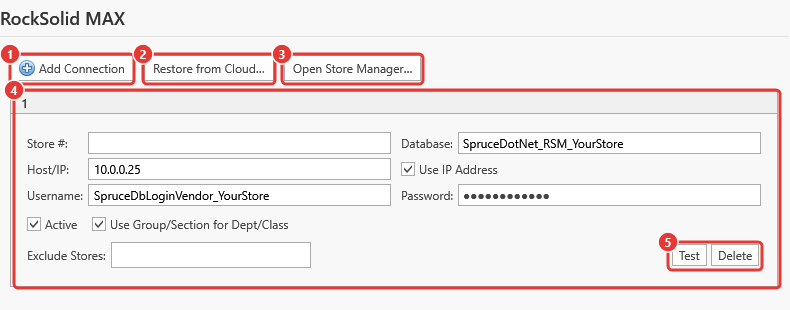
- Add Connection - one card per store database.
- Restore from Cloud...
- Open Store Manager...
- The connection card - Store #, Host/IP, Database, Username, Password, Active, Use Group/Section for Dept/Class, Exclude Stores.
- Test / Delete.
For a file-based import:
- Export your data from RockSolid Max. The file should be named with a
Data.txtsuffix (e.g.,StoreData.txt). - Place the file in the configured import folder.
- Margin Master reads the file and loads the data into its database.
- The data is ready for the main table build.
Tips
Make sure your export file ends with
Data.txt(e.g.,MyStoreData.txt). Margin Master looks for this name when scanning for import files.
Leading zeros in store numbers are trimmed automatically. Store
00123becomes123.
Do not confuse RockSolid Max with the standard RockSolid POS import. They are completely different systems with different exports.
Common Questions
Q: Is RockSolid Max the same as RockSolid? A: No. RockSolid Max and RockSolid are completely separate POS systems. They produce different exports and have different configuration options in Margin Master. Make sure you select the correct POS type in your store settings.
Q: My file has GROUP and SECTION but I want to use CLASS and DEPARTMENT instead. A: Margin Master builds Department and Class from your export's Group and Section by default. If you need a different mapping, contact Margin Master support.
Q: Why are there duplicate records being removed? A: If the RockSolid Max export lists the same item more than once, Margin Master keeps a single copy. Nothing else is dropped from your data.