
- Prerequisites
- Firewall and Network Requirements
- Microsoft Edge Download Block
- SQL Server Authentication Setup for IT Administrators
- Antivirus and Endpoint Security Exclusions
- SQL Server Tools
- Install or Upgrade SQL Server Express
- Install or Upgrade SQL Server Management Studio
- Database Connection Setup
- Database Creation
- Database Restore
- Transfer Settings from Database
- Connecting a Second Computer
- A Tour of the Main Window
- The Menus
- The Button Row
- The Main Data Grid
- The Summary Section
- Banners and Badges
- The Options Window
- Store Configuration
- Miscellaneous
- Export Options
- Vendor Settings
- POS / Connections Tabs
- Background Service
- AI Assistant (Experimental)
- How POS Import Works
- Supported Point-of-Sale Systems
- Data Import Workflows
- RockSolid POS Import
- Epicor Eagle FTP Import
- Epicor MySQL Compass Import
- Transact POS Import
- Paladin POS Import
- Falcon POS Import
- Spruce POS Import
- Bistrack POS Import
- RockSolid Max POS Import
- ECS POS Import
- Prosperity POS Import
- Catalyst POS Import
- Westlake POS Import
- MI9 POS Import
- AS/400 POS Import
- CounterWorks POS Import
- Dimension POS Import
- PacSoft POS Import
- ProStix POS Import
- Sympac POS Import
- Propello POS Import
- EagleVision POS Import
- MySQL/Compass Connection Configuration
- ECI VPN Requirement (Spruce, RockSolid MAX)
- Propello POS Integration Guide
- Troubleshooting: Epicor Import Brought In 0 SKUs
- PACE POS Import
- Advantage POS Import
- General Store POS Import
- J-3 POS Import
- KeyStroke POS Import
- AutBusSystem POS Import
- Tomax POS Import
- Enterprise POS Import
- Computakey POS Import
- Redisell POS Import
- DART POS Import
- MIB POS Import
- Substruct POS Import
- DMAS POS Import
- RODS POS Import
- Procom POS Import
- Agility POS Import
- Acumen POS Import
- Cruise POS Import
- LSandE POS Import
- Retalix POS Import
- DIBCorp POS Import
- GMROI POS Import
- ECi Advantage POS Import
- Sunray POS Import
- ActivantAutomotive POS Import
- IBS POS Import
- Versys POS Import
- RMS POS Import
- TAMS POS Import
- Integrasoft POS Import
- Dynamic POS Import
- Microsoft ARS POS Import
- CDS POS Import
- Spartan POS Import
- Nitterhouse POS Import
- Jeds POS Import
- Theisens POS Import
- Emery Jensen POS Import
- SMS Pro POS Import
- Burdens POS Import
- Intact POS Import
- Bloom Retail POS Import
- NCR Counterpoint POS Import
- Horizon POS Import
- Cloud Vendor Data Sync
- Data Aging and Freshness Warnings
- Resetting Vendor and POS Data
- Rebuild Data and Rebuild Selection Lists
- Troubleshooting Vendor Sync
- Understanding the Strategy Hierarchy
- Pricing Strategies
- Creating a Strategy Step
- Updating and Deleting Steps
- Reviewing a Strategy and Running It
- Shared (Premade) Strategies
- SKU-Level Exceptions
- Manage Custom Groups
- Strategy Execution Cloud Tracking
- Ace Hardware MAP & IMAP Pricing
- Ace Critical Retail Pricing
- True Value Price Levels
- True Value Store Assessment
- Importing from Excel
- Cost Break Analysis
- Cost Break Strategies
- Min/Max Strategies
- Strategy Backup & Restore
- Add Items from Catalog
- Store Grouping
On This Page
Dimension POS Import
What is this?
Dimension is a point-of-sale system used by some hardware retailers. Margin Master imports Dimension data exports to build pricing analysis tables.
Margin Master reads the standard export your Dimension system produces; support confirms the layout with you at setup.
How Import Works
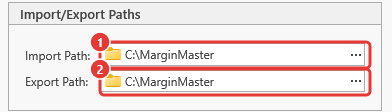
The export file is read from the Import Path set under Tools > Options > Miscellaneous:
- Export your data from the Dimension system as a
.txtfile, using the export Margin Master support confirmed with you. - Place the file in the configured import folder.
- Margin Master reads the file and loads the data into its database. If the export has no Store column, every record is treated as store "1".
- Margin Master joins the store data with vendor catalog data to build your main pricing analysis table.
Troubleshooting
| Symptom | Likely cause | What to do |
|---|---|---|
| No Files Found when you choose Get POS Data | The export is not in the Import Path (Tools > Options > Miscellaneous), or its name does not match the file name Margin Master support confirmed with you | Check the path and the file name; Margin Master reads only the current folder, not sub-folders |
| The same file is imported again and again | The previous import's file was not renamed | After a successful import the file is renamed to NAME[ext].BAK; a file that keeps its name did not import - read the error dialog |
| 0 records or far fewer than expected | The export covers the wrong store, or the store is not matched in the Store Manager | Open Store Manager and check the store's row; re-export from the point of sale |
| Columns land in the wrong fields | The export layout changed | Contact Margin Master support with the file |
| Import finishes but the grid does not change | The rebuild was postponed (the Click to update data badge is showing) | Click the badge, or Data > Rebuild Data |
Every import failure shows one error dialog; the log under File > Utilities > Show Log Files has the detail to send to support.
Tips
- Catalog is your SKU: Dimension uses "Catalog" as its product identifier. This is what you see as the SKU in Margin Master.
- Store column is optional: If your Dimension export does not include a Store column, Margin Master treats every record as store "1". This is useful for single-store operations.
- Units history: Dimension's monthly units-sold columns are what you see as the 13 months of sales history in Margin Master.
Common Questions
Q: My export file does not have a Store column. Will it still import? A: Yes. Margin Master treats every record as store "1" when the export has no Store column.
Q: Why are leading zeros removed from my store number? A: Margin Master trims leading zeros from store numbers during Dimension imports so they match the store numbers used by your other data sources.
Q: What does "LIST" mean in my export?
A: The LIST field in Dimension is the list price (retail price) of the product. Margin Master uses it as the current retail price.