
- Prerequisites
- Firewall and Network Requirements
- Microsoft Edge Download Block
- SQL Server Authentication Setup for IT Administrators
- Antivirus and Endpoint Security Exclusions
- SQL Server Tools
- Install or Upgrade SQL Server Express
- Install or Upgrade SQL Server Management Studio
- Database Connection Setup
- Database Creation
- Database Restore
- Transfer Settings from Database
- Connecting a Second Computer
- A Tour of the Main Window
- The Menus
- The Button Row
- The Main Data Grid
- The Summary Section
- Banners and Badges
- The Options Window
- Store Configuration
- Miscellaneous
- Export Options
- Vendor Settings
- POS / Connections Tabs
- Background Service
- AI Assistant (Experimental)
- How POS Import Works
- Supported Point-of-Sale Systems
- Data Import Workflows
- RockSolid POS Import
- Epicor Eagle FTP Import
- Epicor MySQL Compass Import
- Transact POS Import
- Paladin POS Import
- Falcon POS Import
- Spruce POS Import
- Bistrack POS Import
- RockSolid Max POS Import
- ECS POS Import
- Prosperity POS Import
- Catalyst POS Import
- Westlake POS Import
- MI9 POS Import
- AS/400 POS Import
- CounterWorks POS Import
- Dimension POS Import
- PacSoft POS Import
- ProStix POS Import
- Sympac POS Import
- Propello POS Import
- EagleVision POS Import
- MySQL/Compass Connection Configuration
- ECI VPN Requirement (Spruce, RockSolid MAX)
- Propello POS Integration Guide
- Troubleshooting: Epicor Import Brought In 0 SKUs
- PACE POS Import
- Advantage POS Import
- General Store POS Import
- J-3 POS Import
- KeyStroke POS Import
- AutBusSystem POS Import
- Tomax POS Import
- Enterprise POS Import
- Computakey POS Import
- Redisell POS Import
- DART POS Import
- MIB POS Import
- Substruct POS Import
- DMAS POS Import
- RODS POS Import
- Procom POS Import
- Agility POS Import
- Acumen POS Import
- Cruise POS Import
- LSandE POS Import
- Retalix POS Import
- DIBCorp POS Import
- GMROI POS Import
- ECi Advantage POS Import
- Sunray POS Import
- ActivantAutomotive POS Import
- IBS POS Import
- Versys POS Import
- RMS POS Import
- TAMS POS Import
- Integrasoft POS Import
- Dynamic POS Import
- Microsoft ARS POS Import
- CDS POS Import
- Spartan POS Import
- Nitterhouse POS Import
- Jeds POS Import
- Theisens POS Import
- Emery Jensen POS Import
- SMS Pro POS Import
- Burdens POS Import
- Intact POS Import
- Bloom Retail POS Import
- NCR Counterpoint POS Import
- Horizon POS Import
- Cloud Vendor Data Sync
- Data Aging and Freshness Warnings
- Resetting Vendor and POS Data
- Rebuild Data and Rebuild Selection Lists
- Troubleshooting Vendor Sync
- Understanding the Strategy Hierarchy
- Pricing Strategies
- Creating a Strategy Step
- Updating and Deleting Steps
- Reviewing a Strategy and Running It
- Shared (Premade) Strategies
- SKU-Level Exceptions
- Manage Custom Groups
- Strategy Execution Cloud Tracking
- Ace Hardware MAP & IMAP Pricing
- Ace Critical Retail Pricing
- True Value Price Levels
- True Value Store Assessment
- Importing from Excel
- Cost Break Analysis
- Cost Break Strategies
- Min/Max Strategies
- Strategy Backup & Restore
- Add Items from Catalog
- Store Grouping
On This Page
Epicor MySQL Compass Import
What is this?
The Epicor MySQL Compass import reads inventory data from a MySQL Compass data warehouse running on your local network and loads it into Margin Master for pricing analysis. This is an alternative to the Epicor FTP import for stores that have a Compass data warehouse available. It supports both Ace Hardware/Emery Jensen and Do it Best vendor pairing.
Walk through it in the app: guide 4001 - Connecting to Epicor Eagle. Margin Master can walk you through these steps live: turn on Training / Guide Mode from the Help menu, then type 4001 into the Lessons & Guides box - or ask Margin Master support to run it with you.
MySQL Compass does not use a file. Margin Master connects directly, read-only, to the Compass database on your local network. The connection details are pre-filled on the Epicor tab in Options, and the standard values work for most Compass installations.
How Import Works
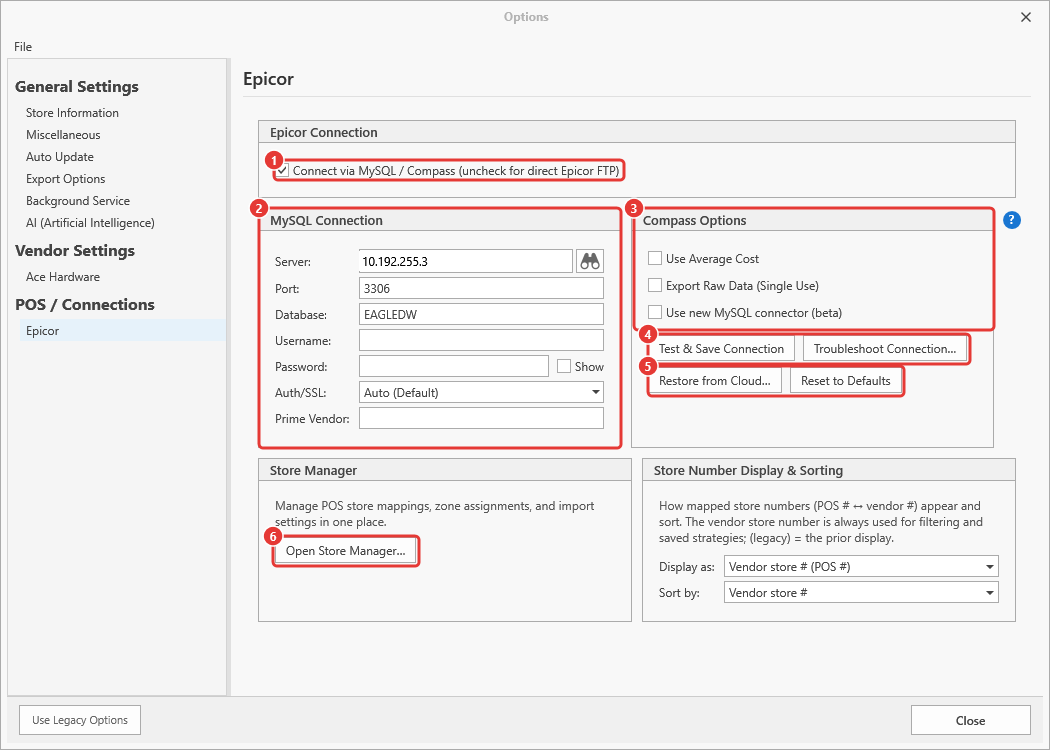
- Connect via MySQL / Compass - checked.
- MySQL Connection - Server, Port, Database, Username, Password, Auth/SSL and Prime Vendor.
- Compass Options.
- Test & Save Connection.
- Troubleshoot Connection..., Restore from Cloud... and Reset to Defaults.
- Store Manager - scroll down for Open Store Manager...
- Main Table Processing - the single main table setting, described under Main Table Processing Mode below.
When you choose Import Data:
- Margin Master connects to the Compass data warehouse on your local network using the server, port, database, and credentials configured in Options.
- The first import brings over every item; later imports bring over only what has changed since the last one, so they are much faster.
- Each store's data is matched to the Vendor Store # you assigned in Store Manager.
- Each store's main table is updated with the latest data.
- Your vendor data is applied according to your store configuration:
- Ace Hardware / Emery Jensen: catalog data, zone pricing and MAP pricing from your synced Ace cloud data. Ace Direct items (SKU numbers ending in "D") match their Ace catalog records automatically.
- Do it Best: vendor data from your synced Do it Best cloud data.
- If SKU reconciliation is on for your store, items that no longer exist in Compass are removed from your main tables.
Main Table Processing Mode
The Epicor tab under Tools > Options > POS / Connections has one setting, Use a single main table (one row per SKU per store). It chooses how the main tables are laid out; it does not change what the strategies do or the prices they produce. It is offered on both Epicor import routes; the FTP import has it for per-store processing (store grouping there stays multi table for now).
- Off (the default) — multi table processing. Margin Master builds one main table per store, or one per store group when store grouping is on. Selecting a store picks that store's table.
- On — single main table processing. Margin Master builds one table with one row per SKU per store. Selecting a store filters that table by store number instead of choosing a table. Store grouping still works: group rows (one per SKU per group, cost averaged and on-hand summed across the group's stores) live in the same table, and the Use Store Grouping? switch on the Store Information tab chooses which set your strategies price.
Changing the setting does nothing until you close the Options window. You are then asked to confirm, and the confirmation names every main table that will be replaced. If you answer Yes, Margin Master builds the new table first and removes the old ones only once the build has succeeded, so a failed rebuild leaves everything as it was. No keeps the current mode; Cancel returns to Options.
Either way the rebuild reads every store's Compass data already on this computer (it does not connect to MySQL again), applies the vendor catalog and zone pricing per store as the multi table build does, can take several minutes, and discards all current pricing work — future prices, applied rules and locks. Re-run your strategies afterwards. Later imports rebuild whichever layout is selected: with store grouping off, the per-store rows; with it on, the group rows (the other set is left as it is, exactly as the multi table rebuild leaves the other tables).
Tips
Later imports are faster. After the first full import, only changes are brought over. This makes subsequent imports much faster, especially for large inventories.
MySQL connection settings are in Options. Go to Options, then the Epicor tab and check Connect via MySQL / Compass to configure your MySQL server address, port, database name, and credentials.
Store configuration is required. Each store must be matched to a Vendor Store # in Store Manager before its data can be imported. A store with no Vendor Store # (a Needs Setup badge) imports 0 SKUs. If a store imports nothing, see Troubleshooting: Epicor Import Brought In 0 SKUs.
SKU reconciliation is optional. Margin Master can remove local rows for items deleted from Compass. This keeps your data clean, but be aware it will remove any locally-added items. Margin Master support can turn it on or off for your store.
Works with both Ace and Do it Best. Unlike the FTP import (Ace only), MySQL Compass import supports both Ace Hardware/Emery Jensen and Do it Best vendor data, depending on your store configuration.
Common Questions
Q: What is the difference between FTP and MySQL Compass import? A: FTP downloads the inventory file directly from the Eagle server. MySQL Compass reads from a local Compass data warehouse. Both provide the same inventory data. Use MySQL Compass if your store has a Compass data warehouse on the local network.
Q: Why does the first import take longer? A: The first import brings over every item from Compass. Subsequent imports only bring over what has changed since the last one, making them much faster.
Q: What vendor data can I use with MySQL Compass? A: MySQL Compass supports both Ace Hardware/Emery Jensen and Do it Best vendor pairing. The vendor data applied depends on your store's vendor configuration.
Q: What happens if an item is deleted from Epicor? A: If SKU reconciliation is on, Margin Master will detect items that no longer exist in Compass and remove them from your local main tables during reconciliation.
Q: What are the key settings for MySQL Compass? A: On the Epicor tab in Options: Connect via MySQL / Compass (on/off), Server (server address), Port and Database (both pre-filled with the standard Compass values), plus the username and password.