
- Prerequisites
- Firewall and Network Requirements
- Microsoft Edge Download Block
- SQL Server Authentication Setup for IT Administrators
- Antivirus and Endpoint Security Exclusions
- SQL Server Tools
- Install or Upgrade SQL Server Express
- Install or Upgrade SQL Server Management Studio
- Database Connection Setup
- Database Creation
- Database Restore
- Transfer Settings from Database
- Connecting a Second Computer
- A Tour of the Main Window
- The Menus
- The Button Row
- The Main Data Grid
- The Summary Section
- Banners and Badges
- The Options Window
- Store Configuration
- Miscellaneous
- Export Options
- Vendor Settings
- POS / Connections Tabs
- Background Service
- AI Assistant (Experimental)
- How POS Import Works
- Supported Point-of-Sale Systems
- Data Import Workflows
- RockSolid POS Import
- Epicor Eagle FTP Import
- Epicor MySQL Compass Import
- Transact POS Import
- Paladin POS Import
- Falcon POS Import
- Spruce POS Import
- Bistrack POS Import
- RockSolid Max POS Import
- ECS POS Import
- Prosperity POS Import
- Catalyst POS Import
- Westlake POS Import
- MI9 POS Import
- AS/400 POS Import
- CounterWorks POS Import
- Dimension POS Import
- PacSoft POS Import
- ProStix POS Import
- Sympac POS Import
- Propello POS Import
- EagleVision POS Import
- MySQL/Compass Connection Configuration
- ECI VPN Requirement (Spruce, RockSolid MAX)
- Propello POS Integration Guide
- Troubleshooting: Epicor Import Brought In 0 SKUs
- PACE POS Import
- Advantage POS Import
- General Store POS Import
- J-3 POS Import
- KeyStroke POS Import
- AutBusSystem POS Import
- Tomax POS Import
- Enterprise POS Import
- Computakey POS Import
- Redisell POS Import
- DART POS Import
- MIB POS Import
- Substruct POS Import
- DMAS POS Import
- RODS POS Import
- Procom POS Import
- Agility POS Import
- Acumen POS Import
- Cruise POS Import
- LSandE POS Import
- Retalix POS Import
- DIBCorp POS Import
- GMROI POS Import
- ECi Advantage POS Import
- Sunray POS Import
- ActivantAutomotive POS Import
- IBS POS Import
- Versys POS Import
- RMS POS Import
- TAMS POS Import
- Integrasoft POS Import
- Dynamic POS Import
- Microsoft ARS POS Import
- CDS POS Import
- Spartan POS Import
- Nitterhouse POS Import
- Jeds POS Import
- Theisens POS Import
- Emery Jensen POS Import
- SMS Pro POS Import
- Burdens POS Import
- Intact POS Import
- Bloom Retail POS Import
- NCR Counterpoint POS Import
- Horizon POS Import
- Cloud Vendor Data Sync
- Data Aging and Freshness Warnings
- Resetting Vendor and POS Data
- Rebuild Data and Rebuild Selection Lists
- Troubleshooting Vendor Sync
- Understanding the Strategy Hierarchy
- Pricing Strategies
- Creating a Strategy Step
- Updating and Deleting Steps
- Reviewing a Strategy and Running It
- Shared (Premade) Strategies
- SKU-Level Exceptions
- Manage Custom Groups
- Strategy Execution Cloud Tracking
- Ace Hardware MAP & IMAP Pricing
- Ace Critical Retail Pricing
- True Value Price Levels
- True Value Store Assessment
- Importing from Excel
- Cost Break Analysis
- Cost Break Strategies
- Min/Max Strategies
- Strategy Backup & Restore
- Add Items from Catalog
- Store Grouping
On This Page
Miscellaneous
What is this?
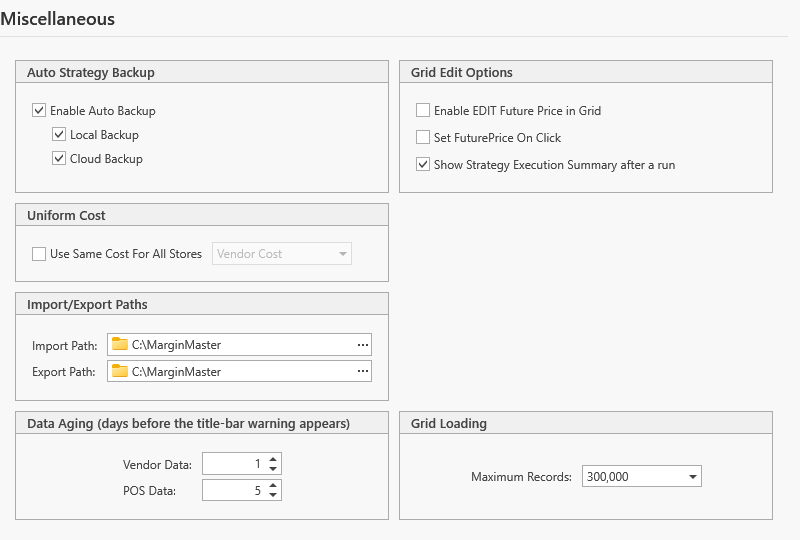
The Miscellaneous tab (Tools > Options > General Settings > Miscellaneous) holds the settings that do not belong to a vendor or a point of sale: where import and export files live, automatic strategy backups, how the grid behaves, cost handling across stores, the data-aging warning thresholds and how many rows the grid loads. Every setting saves as soon as you change it.
Import/Export Paths
| Field | Meaning | Default |
|---|---|---|
| Margin Master Folder | Where Margin Master keeps its own files: exports, strategy backups, saved maps, rounding schemes and history | C:\MarginMaster |
| Import Path | The folder Margin Master reads point-of-sale export files from (Data > Get POS Data) | the Margin Master Folder |
| Export Path | The folder price-change exports and reports are written to | the Margin Master Folder |
| Network Import Root | Bistrack only: an optional share whose per-branch sub-folders are scanned for exports | blank |
Use the folder button to browse. An orange or red note under the field - Directory does not exist, Folder is not writable — choose a different location, Folder not found or unreachable - means the path must be fixed before it will work.
For RockSolid stores the Import Path must point at the point of sale's own program folder, because the import reads the live
.RSfile in place. Margin Master never deletes or renames files in a folder it does not own; only its ownNAME[ext].BAKbackups inside the Margin Master Folder are cleaned up.
Moving the Margin Master Folder (OneDrive, another drive, or a network folder)
The Margin Master Folder can be anywhere this computer can write to: a folder inside OneDrive so
it is backed up, a second drive, or a network folder shared by several computers. Choose a folder
of its own, for example OneDrive\MarginMaster or \\server\share\MarginMaster. A whole
drive, the top of a network share, or a program folder is refused.
When you pick a new folder and leave the field, Margin Master saves it straight away. From then on everything it writes goes into the new folder, and each subfolder (strategy backups, exports, maps) is created the first time it is needed. Nothing is copied or moved: the files already in the old folder stay where they are, so copy any you want to keep. An Import Path or Export Path that was the old default folder follows the new one; a path you chose yourself, such as a RockSolid program folder or a mapped drive, is left alone.
Database backups stay on this computer. SQL Server writes database backups under its own account, and that account usually cannot write to a network folder. To keep a copy of a database backup in OneDrive, back up as usual (File > Backup Database) and copy the zip file into OneDrive afterwards. Never let OneDrive sync SQL Server's own data files.
If the network folder cannot be reached when Margin Master starts (a laptop away from the office,
a server that is down), Margin Master uses C:\MarginMaster for that session and goes back to the
network folder once it can reach it again. The orange note under the field says when that is
happening.
Auto Strategy Backup
| Setting | Meaning | Default |
|---|---|---|
| Enable Auto Backup | Back your pricing strategies up automatically | on |
| Local Backup | Keep the backup on this computer | on |
| Cloud Backup | Also send it to the Margin Master cloud, keyed to your store, so it can be restored on another computer | on |
Manual backup and restore live under File > Strategy - see Strategy Backup & Restore.
Grid Edit Options
| Setting | Meaning |
|---|---|
| Enable EDIT Future Price in Grid | Lets you type a future price straight into the grid's green column. Off by default so every price comes from a strategy or the Future Price panel and can be reproduced |
| Set FuturePrice On Click | Sets the future price when a row is clicked |
| Show Strategy Execution Summary after a run | Shows the report when a strategy finishes. Turning it off does not change what the run does or logs; runs that finish with errors always show the summary. On by default |
Uniform Cost
Use Same Cost For All Stores prices every store from one cost instead of each store's own. When it is on, choose which cost: Vendor Cost or Store N Cost for one of your stores. Useful for multi-store businesses that want identical pricing regardless of what each store paid.
Data Aging (days before the title-bar warning appears)
| Setting | Meaning | Default |
|---|---|---|
| Vendor Data | Days since the last vendor sync before the Data Aging badge appears | 1 |
| POS Data | Days since the last point-of-sale import before the badge appears | 5 |
Both accept 0-90. See Data Aging and Freshness Warnings.
Grid Loading
Maximum Records caps how many rows the grid loads at once, in steps of 25,000 up to 500,000, or Unlimited. The default of 100,000 keeps the grid quick on most computers; raise it only if a selection you need is being cut off, and expect slower refreshes above 250,000.
Tips
Keep the Import and Export paths on a local drive. A network path that drops out mid-import is the most common cause of a half-finished import.
The two data-aging numbers are the only settings here most stores ever change - set them to match how often you actually sync and import.
Common Questions
Q: I changed the Import Path but Get POS Data still says No Files Found. A: Check the note under the field and the file name pattern for your point of sale (its guide in Part III). Margin Master reads the folder itself, not sub-folders.
Q: What does Unlimited do to a large database? A: Every selected row is loaded. On a multi-store database that can be several hundred thousand rows and a long wait; prefer narrowing the selection.